
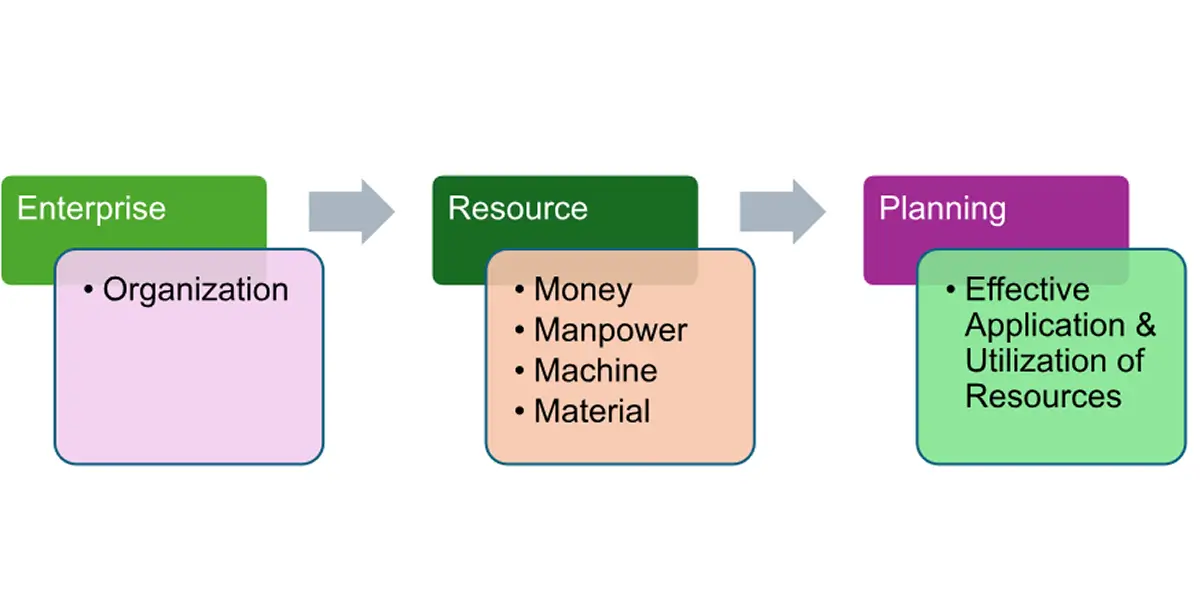
Overview of ERP
Enterprise resource planning (ERP) is a Business Application Tool designed to help companies to store, manage and use data regarding their daily and regular processes.
Why to use ERP
Enterprise Resource Planning systems are used to looking into manage their business functions within a centralized and integrated system.
- Streamline the Processes
- Real Time Integration bewteen the functions
- Online Visibility
- Data Redundancy
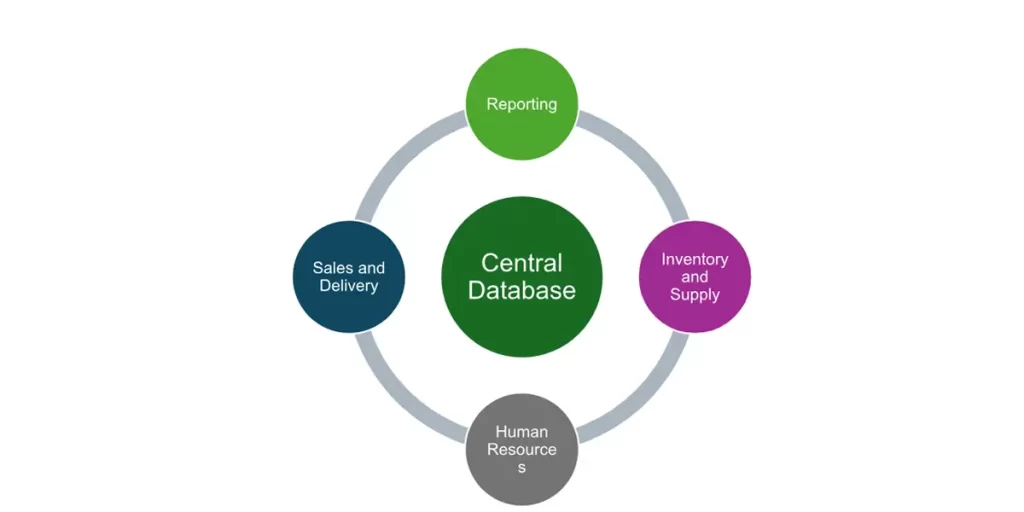
Differences of Traditional ERP and Cloud ERP
The basic difference between Traditional ERP and cloud ERP is Traditional/ On-premise ERP solutions are installed locally on your company’s hardware and servers are managed by your IT staff while cloud ERP called SaaS, or Software-as-a-Service which is provided as a service.
Traditional ERP | Cloud ERP |
Onpremise software is installed locally on Company’s own computer and servers | Cloud-based software is hosted on the vendor’s servers and accessed through a web browser. |
On-premise software is generally priced under a one-time payment for license fee,usually based on the size of the organization or the number of concurrent users | Cloud software is priced under a monthly or annual subscription with additional recurring fees for support, training and updates. |
On-premise systems are generally considered a capital expenditure (onetime large investment). | Cloud-based systems, on the other hand, are typically considered an operating expenditure (an additional overhead cost the organization will continue to pay). |
Cloud Service Models: IAAS (Infrastructure as a Service), PAAS ( (Platform as a Service) and SAAS(Software as Service- Ex: Gmail ,Workday(no software install).
- Workday is not selling Software, it is rental basis service.
- Rental means, you need to purchase the URL, through those URL, you can manage your data. These URLs call as Tenant.
- It is GUI Interface interactive mode.
Overview of Workday
Workday is a cloud-based enterprise resource management (ERP) suite which is suitable for global businesses. Workday delivers user and administrative tools across Financials, HR, Planning, Talent, Payroll, Analytics, Student modules and more from a single system.
Why to use Workday
- Workday is a SAAS (Software as a Service) based cloud service software
- Always on the current version of software
- Workday provides the server infrastructure to run our applications
- Workday develops and delivers software updates as part of service
- User friendly and in-built software
- Every Customer that uses Workday is on the same version that allows for better support by Workday and makes sure we are using the most up to date functionality
- Streamline business processes based on industry best practice
- You can preview the newest developed software in your ‘Sandbox’
- Workday provides data conversion between updates
Workday Solutions
- Human Capital Management
- Payroll
- Talent Management
- Student Module
- Planning
- Financial
- Analytics
Workday System Landscape
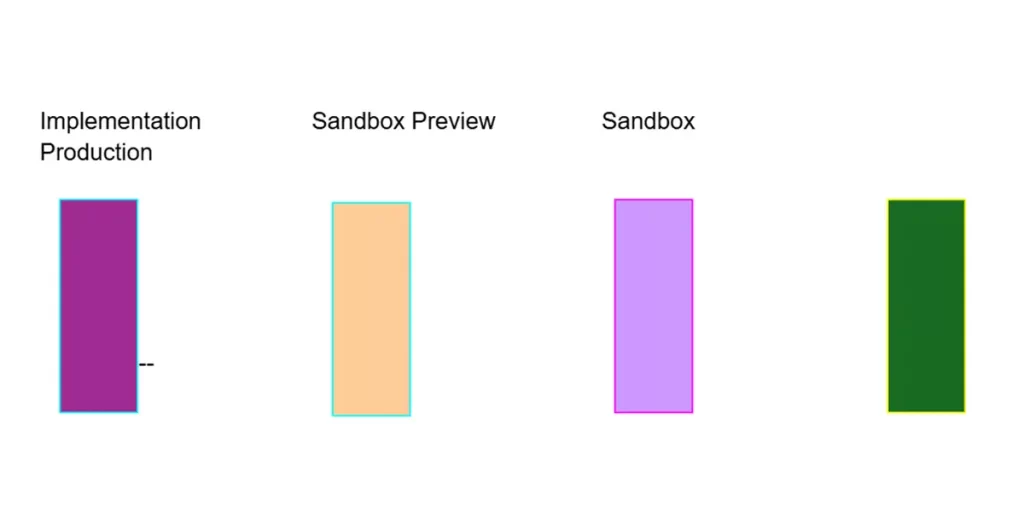
Name of Tenant | Usage | Remarks |
Production | Live system available for End Users. All the day to day activities record here | myworkday.xyz |
Sandbox | Testing Environment and It is copy of Production. It refreshes every week (Friday 6PM PST Time zone) | impl.wd.com/xyz |
Sandbox Preview | Sandbox Preview also holds the copy of the Production data, additionally it contains new functionality that may be available in a future Feature Release. Sandbox preview is refreshed every week during the Scheduled Friday Service update. One exception is – It will not refresh 4 weeks prior to a Feature release. | impl.wd.com/xyz_preview |
Implementation | Development System. Refreshes every 6 months | impl.wd.com/xyz1 |
Note: Each Tenant has a unique URL.
Workday doesn’t recommend you using the Sandbox Preview tenant for deployment work because
- Sandbox Preview contains new features where other non-preview parallel tenants would not have.
- Migration tool: Solutions doesn’t support object movement from Preview tenant to a Non-Preview tenant.
Implementation: Implementation tenant gives more flexibility with respect to refreshes. Workday recommends using Implementation tenant if you are configuring new features which you think would take more than 3 weeks to complete the project.
The Implementation tenants are not refreshed with a copy of Production unlike your sandbox tenant. There are no mandatory refreshes but on ad-hoc basis.
Based on Subscription and Size of the company, your company will have additional implementation tenants.
Empty Implementation tenant will be used for prototyping after initial discovery phase.
Used by: Developers, Implementation Consultants, Integration Consultants, Report Writing Specialists etc.,
Implementation Preview: This is another preview tenant like Sandbox preview. Workday recommends Implementation Preview tenant if you are testing future features and you do not have a Sandbox Preview tenant. The Implementation Preview tenants are subject to weekly Service Updates, but the tenants are not refreshed unless you specifically make the request .
The creation of your Implementation Preview tenant must be requested using the Workday Customer Center or the Workday Partner Center. You must refresh the data in the Implementation tenant to transform it into an Implementation Preview tenant.
Prototype Tenant: These tenants are oftenly called with names P0 (called as P-Not), P1, P2 and P3. These are used during the implementation Phase where you Build, Test and Deploy you Organization data. These are Implementation tenants too.
Workday Tenants can be identified as below.
Production –> www.myworkday.com
Non-Production –> impl.workday.com (Including Sandbox)
Initial Production Tenant setup process during the your Organization go live.
- Build Gold Tenant from Scratch
- System testing and validation
- Move Gold Tenant to Production
- Production Tenant
Other Tenant Terminology
GMS: Global Modern Services is a fictitious company created by Workday for demonstration purpose. A GMS tenant is a workday environment fully set up to demonstrate capabilities within workday, often used prior to an implementation tenant is built with customer data
ECT: Extended configuration tenant is a tenant that is specially configured for large customers to handle large volume reports, integrations and business processes. Only 1 is provided per customer
Grid: Tenant configured/set up to utilize the grid to support (off-load) payroll processing- in order to make large payroll calculations run more quickly
Tenants broadly categorized into two types:
- Production Tenant Types
- Production
- Sandbox
- Sandbox Preview
- Customer Provisioned Implementation tenants:
- GMS / AMU / GOV
- Prototype
- Design
- Full Data Load
- Testing
- Gold
- Global Modern Services (GMS) : Used by most of the customers
- Green Oak Valley (GOV) or : Used by Universities and Colleges
- Alma Mater University (AMU) : Used by Education and Government Customers
The GMS, GOV or AMU tenant gives you an opportunity to see configured features and custom reports using fictitious organizations and workers.
These Tenants are pre-configured with demonstration data. No customer or testing data should be loaded into the GMS, GOV and AMU tenants.
Tenant usage by Project Phase | |||||
Tenant | Plan | Architect & Design | Configure & Prototype | Test | Deploy |
Workday Provided Tenant 1 | GMS(Workday Prepopulated Tenant) | GMS(Workday Prepopulated Tenant) | Prototype 1 including conversion | Solution Testing |
|
Workday Provided Tenant 2 | Integration | Integration & Report | Integration & Report | Integration & Report | Integration & Report |
Workday Provided Tenant 3 |
|
| Prototype 2 including conversion | UAT testing | Data validation & Day 1 Sandbox |
Workday Provided Tenant 4 |
|
| *Training Content | *Training Content | *Training Content |
Workday Provided Tenant 5 |
|
| ** Configure Master | Payroll Compare Testing |
|
Possible Additional Tenant 6 |
|
|
| ** Configure Master | Final Conversion and Tenant build |
Workday Provided Gold Tenant |
|
|
|
| Final Conversion and Tenant build |
Workday Implementation Methodology
Workday Project Implementation Methodology | ||
|---|---|---|
| Overviews | Output |
Plan | Clearly define scope and plan of the project including key milestones, deliverables, acceptance criteria and strategy documents | Clearly stated strategic vision and guiding principles |
Architect | Define Workday Business Processes and Master data setup | P1 Tenant with global configuration |
Configure &Prototype | Review the configuration and data in workday Tenant | P2 tenant with updated configuration and improved data quality |
Test | Ensure the configuration works as per the design and integration functions also works correctly | Test Tenant with updated configuration and improved data quality |
Deploy | Prepare for and execute system & Business cutover to workday | Gold & Production Tenants |
Support | Provide Production support | End user support |
Workday Navigation
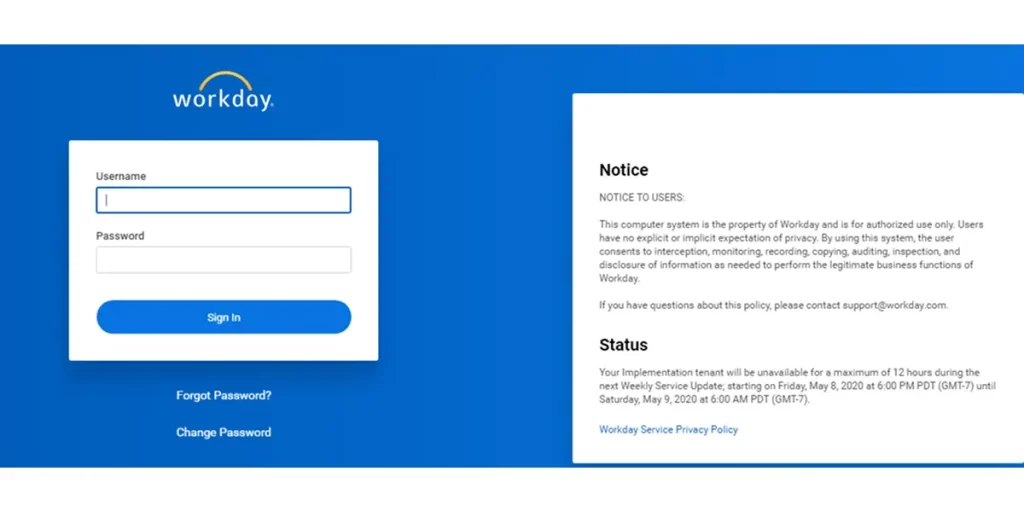
Workday Logon Screen
This section serves to provide business requirements regarding accounting processes and functions as well as a description of the envisioned Finance structures and customized settings
Data Structure in Workday
- Workday stores data as a business object which is similar to database tables or worksheets in Excel.
- Workday business objects has Fields and Instances like database tables or worksheet has rows & columns
- Workday automatically links related business objects together.
Functional Area | Ex: Customer /Customer Accounts |
Domain | Ex: Customers/Customer Invoice |
Business Process | Ex: Customer Request/Customer invoice event |
Domains | Business Process(BP) |
Setup Data | Daily Transactional Activity |
Power Users | End Users |
Static Data | Large Amount of Data |
High level Security : View or View /Modify | Granular Security: Initiate, Approve, Cancel ,Correct |
No Configuration | Highly Configurable |
No Workflow | Workflow through Business Process definition |
Favourites
- Workbench
- Landing Pages
- Dashboards
- Search
- All about me
- Related Actions (Mail notification)
In the top upper Left Corner with symbol “W”, clicking on this will always take you back to the “Home Screen”
Next to the “W” is the search option, this works like Google search, you can begin typing words and it will search the system for relatives matches based on your search criteria
On the top Right Corner of the screen, you will see three icons – bell, envelope and cloud
- Bell – This is for system or custom built notifications. Click on the bell can check your notifications.
- Envelope – This will specify that you have a task or action waiting for you in your inbox. Click on the envelope to check the mail notifications with actions pending.
- Cloud – When you upload your photo in Workday, this will change to your picture; this allows you to view your profile, home, workbench, favorites, documentation, My Account and Sign Out.
Applications: This is a panel that provides different work lets that you can view or update information.
Favorites: This is where you can add quick links to favorite’s areas within the system.
W:Drive : This is the drive in the system that is used when you run a report within Workday
Documentation: This will open a new screen and direct you out to Workday Community where you can request access or login.
My Account: This will take you to a sub link called “change preferences” where you can turn on and off items within Workday for notifications.
Gear: This will take you to a page where you can add additional work lets to your home screen in addition to the required to current icons. Click on the plus sign and then search Workday for work lets within the system.